Asus Aura Sync: Full RGB Control, Stunning Effects & Easy Setup
Aura Sync is a smart lighting system for anyone who loves a clean, colorful, and stylish PC setup. You can control all your RGB parts in one simple place with Aura Sync, like your fans, keyboard, mouse, motherboard, and even your headset. Everything lights up together with smooth, matching colors that instantly make your setup look premium.

If you have ever stared at your PC and thought, “Why do all my RGB parts glow in different colors like they are fighting each other? I know many users love RGB, but hate the messy, and unmatched lighting that makes the whole setup look unplanned.
That is exactly where Aura Sync 2026 changes the whole experience. It brings all your RGB parts together and allows them to move in perfect coordination, almost like they are following the same rhythm. It is a lighting control system that is made for PCs that use RGB parts and accessories.
This software supports many compatible devices, which gives you more choices and flexibility. So, get ready to take full control of your PC lighting and make every part shine in perfect harmony.
What is Armoury Crate?
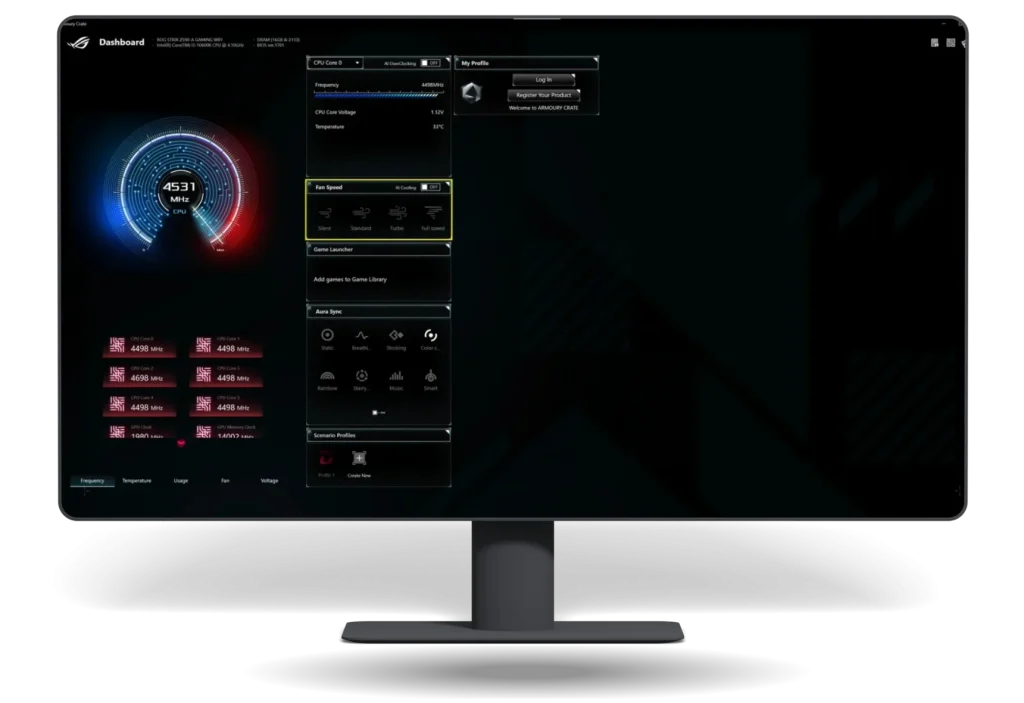
Armoury Crate is a software from ASUS that helps you to manage and customize your PC settings in one place. It allows you to control RGB lighting, monitor system performance, update drivers, and adjust fan speeds easily. You can keep your PC running smoothly while making it look stylish with coordinated lighting effects across all compatible devices with Armoury Crate.
What is Aura Sync?
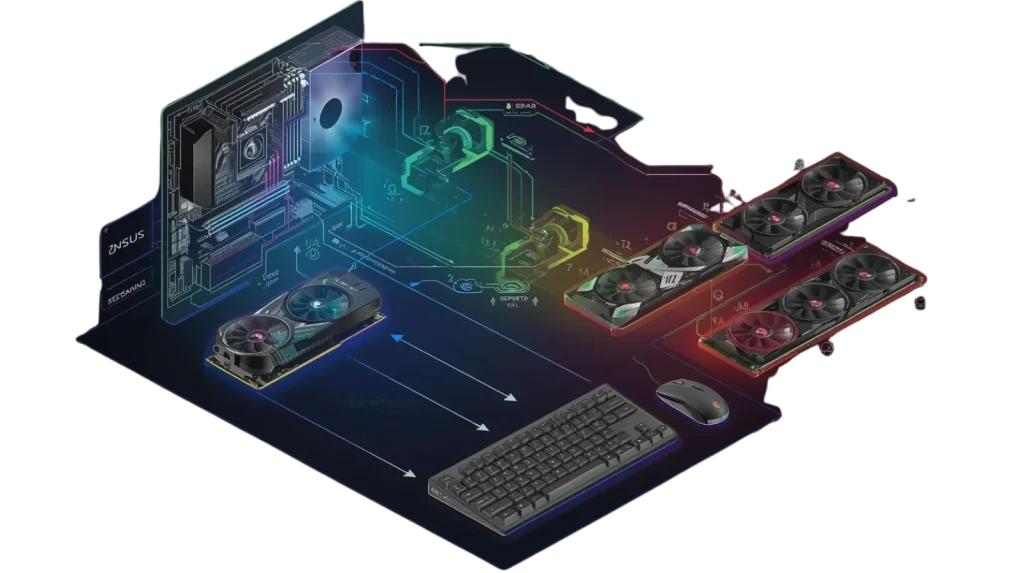
Asus Aura Sync is a lighting control feature that is part of ASUS’s Armoury Crate software. It allows you to synchronize and manage RGB lighting across all compatible PC components and peripherals, which include motherboards, graphics cards, fans, keyboards, and mice.
All your devices can display coordinated colors and effects by using this, which gives your PC setup a unified and polished look. It is designed to be user-friendly, allowing both beginners and advanced users to easily customize lighting without juggling multiple programs.
Difference Between Armoury Crate and Aura Sync

How Aura Sync Works?
Aura Sync software works through Armoury Crate, which automatically detects all compatible ASUS devices connected to your PC. Once detected, you can customize colors, lighting effects, andbrightness for each device individually or sync them all together for a coordinated look.
The software sends commands to the RGB hardware, so the lights change instantly according to your settings. You can choose from preset effects, create custom patterns, or match colors across multiple devices, which makes your PC setup look polished, stylish, and unified.

Aura Sync Compatible Devices
It works with a variety of ASUS devices, which allows them to sync colors and lighting effects across your PC. Compatible devices include motherboards, graphics cards, RAM, fans, keyboards, mice, and more, which makes it easy to create a unified RGB setup.
|
Device Type |
Examples / Models |
|---|---|
|
ASUS Motherboards |
ASUS ROG, ROG Strix, TUF Gaming boards with Aura Sync |
|
ASUS Graphics Cards |
ROG Strix and TUF Gaming RGB GPU models |
|
ASUS RGB RAM / Memory |
Aura Sync‑ready memory modules |
|
ASUS RGB Fans |
Aura Sync RGB fans (ASUS-branded or supported RGB fans) |
|
RGB CPU Coolers / AIOs |
ASUS Aura Sync‑compatible liquid & air coolers |
|
Keyboards |
ASUS ROG Aura Sync‑supported keyboards |
|
Mice |
ASUS ROG Aura Sync‑supported mice |
|
Headsets |
ASUS ROG with Aura Sync lighting |
|
RGB LED Strips |
Asus‑certified RGB LED strips compatible with Aura Sync |
|
Third‑Party RGB RAM |
Trident Z RGB, Corsair Vengeance RGB Pro, HyperX RGB, and others that support Aura Sync |
|
Third‑Party RGB Fans & Coolers |
Thermaltake Riing Plus, Cooler Master MasterLiquid RGB, Deepcool RGB fans |
|
Third‑Party Accessories |
RGB LED strips, RGB mousepads, and case lighting from supported brands |
How to Download Aura Sync (Updated 2026 Method)
Aura Sync app no longer comes as a separate app that you install by itself. In 2026, it is part of the ASUS Armoury Crate software, which allows you to control RGB lighting and sync your devices from one place. This means to use this properly, you must download and install Armoury Crate first, because its features are built inside it.
System Requirements
You should make sure that your computer meets these basic needs so it can work correctly:
|
Requirement |
Details |
|---|---|
|
Operating System |
Windows 10 (1903 or newer) or Windows 11 |
|
System Type |
64‑bit Windows (most features require 64‑bit) |
|
Compatible Hardware |
ASUS ROG / TUF / supported devices |
You have to follow these steps carefully to install this:
Step-by-Step Guide on How to Use Aura Sync?
Hardware Requirements
Your PC needs certain hardware components that can support RGB lighting to use Aura Sync smoothly. Not all devices automatically work with this, so it is important to check compatibility. This includes ASUS motherboards with proper headers, RGB device types, firmware versions, and connectors.
|
Requirement |
Details |
|---|---|
|
Compatible ASUS Motherboards |
Must have AURA RGB headers |
|
5V ARGB vs 12V RGB Headers |
5V = individual LED control, 12V = all LEDs same color |
|
Device Firmware |
Devices must have updated firmware |
|
Cable / Connector Compatibility |
Use correct RGB/ARGB cables |
If you have compatible ASUS hardware or supported third-party devices, then you can make all your lights match perfectly. You can follow these steps to get started and create a setup that looks great and works smoothly.

Step 1: Open the Module
After installing Armoury Crate, open the application from your Start Menu or desktop shortcut. In the Armoury Crate, you have to find the Aura Sync tab. This is where all your RGB controls are located.

Step 2: Scan & Detect Compatible Devices
When you open it for the first time, it will scan your PC to find compatible devices. This includes your motherboard, graphics card, RAM, fans, and peripherals. You have to check that your devices are properly connected. If some devices do not appear, then check the cables and confirm that the devices support them.

Step 3: Choose a Lighting Mode
Once all devices are detected, you can choose a lighting mode. It offers many preset effects like static color, breathing, color cycle, or rainbow. Click on a mode, and you will see your devices change instantly to that effect. If you want your PC to look simple, then pick a static color, and if you want it lively, then try effects like rainbow or color cycle.
Step 4: Create Custom Colors
If you prefer something unique, then you can design your own custom colors. For 5V ARGB devices, you can control each LED individually, which allows for more complex and colorful effects. For 12V RGB devices, the same color is applied to all LEDs. Choose your favorite shades, mix effects, and preview them live on your setup.

Step 5: Sync All or Sync Individually
Now it is time to decide how to sync your devices. You can sync all devices together so every light changes at the same time, which gives a smooth, coordinated look. Or, if you want a more personalized setup, then control devices individually, for example, set your keyboard to one color and fans to another.

Step 6: Save Profiles for Different Uses
Finally, you can save your lighting setups as profiles. For instance, you might have a gaming profile with bright, dynamic effects and a work profile with calm, soft lighting. This way, you can switch between setups easily without manually changing each setting every time you use your PC
How to Pair New Devices with Aura Sync?
If you have a new RGB device, then first connect it properly to your PC by using the correct RGB or ARGB header on your motherboard, or plug it in via USB if it is a keyboard, mouse, or peripheral.
- Once it is connected, open Armoury Crate from your Start Menu. Inside the app, go to the Aura Sync section where all your lighting devices are listed.
- Next, click on the “Scan” or “Detect Devices” button so it can find your new device. When it appears in the list, then select it to include it in your lighting setup.
- After that, choose a lighting effect or create your own custom colors, and decide whether you want it to sync with all your devices or control it individually.
- Finally, save your profile so your new device keeps its lighting settings even after restarting your PC.
Aura Sync Superlative Features & Lighting Effects
It is not just about basic RGB lighting. It comes with advanced features and effects that allow you to fully control and customize your PC lighting. Whether you want simple colors, dynamic animations, or synchronized setups across multiple devices, it gives you powerful options.

Sync Across Multiple Devices
It allows you to connect all compatible ASUS and third-party devices and make them light up in unison. This means your keyboard, mouse, motherboard, RAM, GPU, fans, and LED strips can all display the same colors and effects at the same time, which gives your PC a cohesive and impressive look.

Preset Lighting Modes
It comes with a variety of ready-to-use lighting modes. These include:
- Static: It keeps a single color on all devices.
- Breathing: In this lights fade in and out smoothly.
- Color Cycle: Moves through multiple colors continuously.
- Rainbow: Creates a flowing rainbow effect across your devices.
These modes make it easy to get a beautiful setup without creating effects manually.

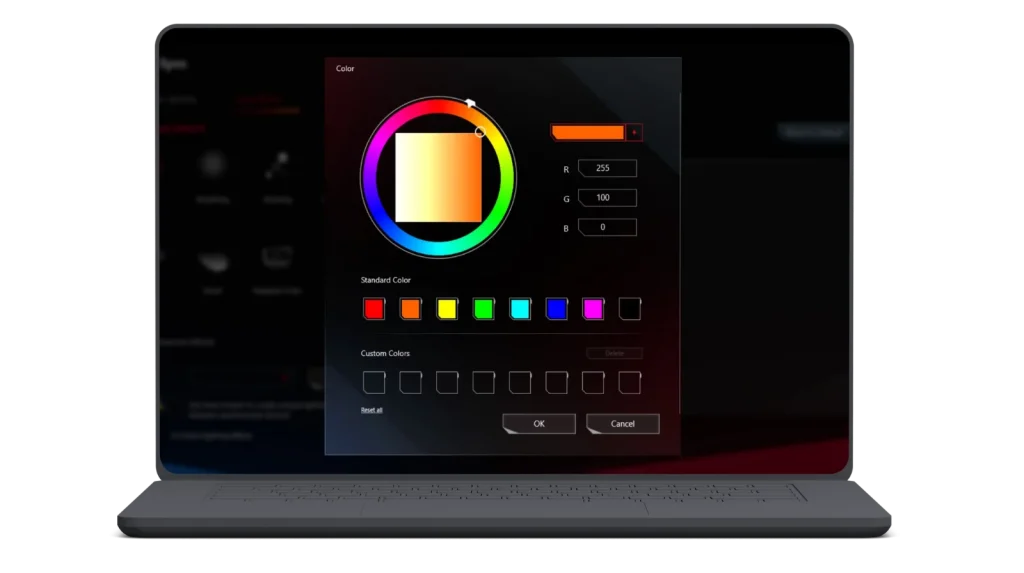
Custom Color Control
It allows you to choose custom colors for each device or LED. You can select individual LEDs, mix colors, and create your own unique patterns. This is ideal for those people who want their PC lighting to match their personal style or room theme.

Dynamic Effects
This supports motion-based or reactive effects. For example, lights can react to keyboard presses, mouse clicks, or in-game events. This adds a fun and interactive layer to your setup, which makes your PC feel more alive.

Profile Management
You can save multiple profiles for different scenarios. For example, one profile for gaming, another for work, and one for streaming. Profiles allow you to switch instantly without changing each device individually, which is convenient and time-saving.
Aura Creator Integration
With Aura Creator, it becomes even more powerful. You can design advanced lighting animations, control each LED individually, and create complex, multi-device effects. This feature is perfect for enthusiasts who want professional-level RGB setups.

Music Sync
Your RGB lights can react to the music you are playing with music sync. The colors and effects change in rhythm with the beats, which creates a lively and immersive experience while gaming, streaming, or just listening to music.

Smart Mode (Temperature-Based Lighting)
Smart Mode links your RGB lights to your CPU or GPU temperature. The colors change based on system temperature, which gives you a visual alert if your PC is running hot. It is both functional and visually appealing, especially for performance enthusiasts.

Adaptive Color (Screen-Based Colors)
Adaptive Color allows your RGB lights to match the dominant colors on your screen. This creates a more immersive experience while watching movies, gaming, or editing, as your PC lighting reacts to the on-screen content.
Temperature & System Feedback Lighting
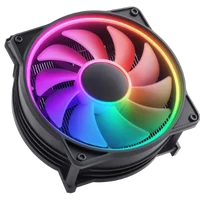
It can also integrate with system monitoring. You can link lighting effects to CPU or GPU temperatures, fan speed, or other performance indicators. This allows your PC not only to look good but also to give visual feedback about its status.
Best Settings for Gamers, Creators, and Power Users
If you use this, then the best lighting settings can vary depending on how you use your PC.
For power users who multitask or run high-performance setups, custom profiles are the best option. You can switch between profiles for gaming, work, or streaming. Combine advanced effects with temperature or system monitoring, so your lights not only look good but also reflect your PC’s status.
Aura Creator (Advanced RGB Editing)
Aura Creator is an advanced tool within Armoury Crate that allows you to fully customize RGB lighting on your compatible ASUS devices. Aura Sync is a basic preset, but Aura Creator allows you to control each LED individually, create complex lighting effects, and design dynamic animations across multiple devices.
It is perfect for those users who want more detailed and professional RGB setups, which allow you to match colors, patterns, and effects exactly the way you like.
Pros and Cons
It is a popular tool for controlling RGB lighting on ASUS and compatible devices, but it still has some advantages and disadvantages:
Pros
Cons
Best Aura Sync Build Ideas
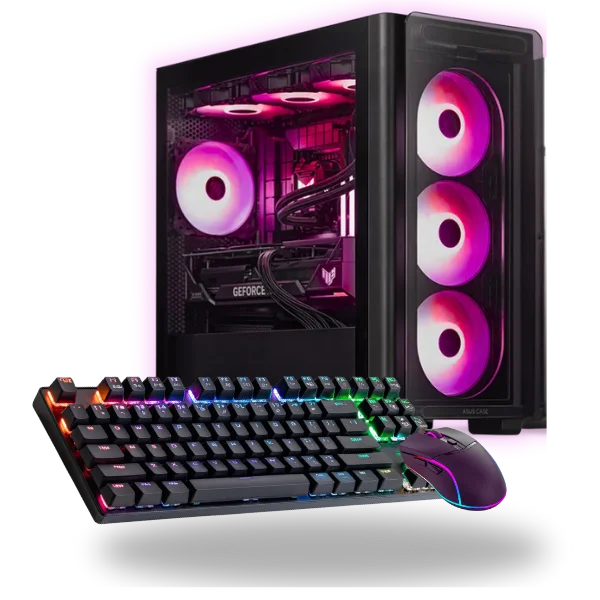
If you want a PC that looks amazing with synchronized RGB lighting, then it can help you to achieve that. Depending on your budget and goals, you can build a budget-friendly setup, a mid-range system, or a high-end ROG gaming PC with stunning lighting effects. These are some ideas:

Budget Build
If you are on a tight budget, then you can still enjoy this without spending too much. You have to focus on an ASUS TUF motherboard with Aura headers, a decent budget CPU and GPU, and a few compatible fans or RAM modules. Even with fewer RGB devices, syncing them through Armoury Crate gives your build a polished look without breaking the bank.

Mid-Range Build
For a mid-range build, you can include ASUS ROG motherboards, ARGB RAM, RGB CPU coolers, and Aura-compatible peripherals like a keyboard and mouse. This setup allows you to use more advanced lighting effects, sync multiple devices, and customize profiles for gaming or work.

High-End ROG Build
A high-end ROG build is the way to go for ultimate performance and show-stopping lighting. You can use top-tier ROG motherboards, ROG Strix GPUs, high-speed ARGB RAM, and multiple RGB fans. Include Aura-compatible peripherals and LED strips to fill your case with synchronized lighting.
Common Aura Sync Issues & Fixes
It is a great software, but sometimes it can run into problems. But most issues are easy to fix if you know what to check. Here I will provide a list of common problems and what you can do to solve them.

Aura Sync Not Detecting Devices
If it is not showing one or more of your devices, then first check the connections. You should check that your RGB/ARGB cables are properly plugged into the motherboard headers or USB ports. Also, ensure your devices are compatible with this. If everything looks fine, then try to restart Armoury Crate or scan for devices again.
RGB Stuck on One Color
Sometimes lights can get stuck on a single color. This mostly happens when the firmware is outdated, or Armoury Crate is not up to date. You should update both your device firmware and Armoury Crate, then try to change the lighting mode. You can also reboot your PC to reset the lighting system.

Missing “Aura” Tab in Armoury Crate
If you do not see the Aura tab, then it might be because it was not installed correctly, or another RGB software is conflicting. Check if you have Aura Creator or old Aura apps installed, or uninstall them and restart your PC.

Not Syncing After Windows Update
Windows updates can sometimes reset drivers or affect software. If it stops syncing, then restart your PC and open Armoury Crate as an administrator. If it still does not work, then reinstall Armoury Crate to restore full functionality.

Device Shows “Offline”
If a device shows as offline, then it might not be properly connected or recognized. You should check the RGB/USB connection to make sure the device is powered on, and scan for devices again. Updating device firmware can also fix this issue.
RGB Stops After BIOS Update
After updating your BIOS, RGB devices may not work immediately. Enter your BIOS and make sure the RGB headers are enabled. Then, restart your PC and open Armoury Crate to check if Aura Sync detects your devices again.
Aura Sync Alternatives
If you want to control RGB lighting but do not have this or want something different, there are other software options available. These alternatives can also manage RGB devices, create lighting effects, and sync compatible hardware from different brands.
|
Software |
Compatible Devices |
|---|---|
|
Corsair iCUE |
It works with Corsair RAM, keyboards, mice, fans, AIO coolers, and RGB LED strips. Allows advanced customization and syncing across Corsair devices. |
|
MSI Mystic Light |
This controls MSI motherboards, graphics cards, RAM, fans, and peripherals with RGB lighting. Good for MSI hardware users. |
|
Gigabyte RGB Fusion |
It works with Gigabyte motherboards, graphics cards, and compatible RGB devices. Allows you to sync colors and effects across devices. |
|
Razer Chroma |
It is for Razer keyboards, mice, headsets, and RGB accessories. It can also integrate with other software by using Chroma SDK. |
|
NZXT CAM |
It manages NZXT RGB products like fans, AIO coolers, and LED strips. Also provides system monitoring and performance controls. |
|
Thermaltake TT RGB Plus |
Controls Thermaltake RGB fans, coolers, LED strips, and cases. Allows multi-device syncing and custom effects. |
Final Words
Aura Sync 2026 remains one of the best RGB lighting ecosystems in the gaming world. It brings your entire setup to life with easy controls, wide compatibility, synchronized lighting, and advanced customization through Aura Creator. If you are building your first PC or upgrading your gaming environment, then it provides a smooth, unified lighting experience that looks stunning in any setup.